How to make a résumé on an iPhone
The whole builder works in a phone browser at 390 pixels wide. Import a file or paste text, correct what was read, choose a design and export a PDF, without an app and without an account.
— no app store, no account.
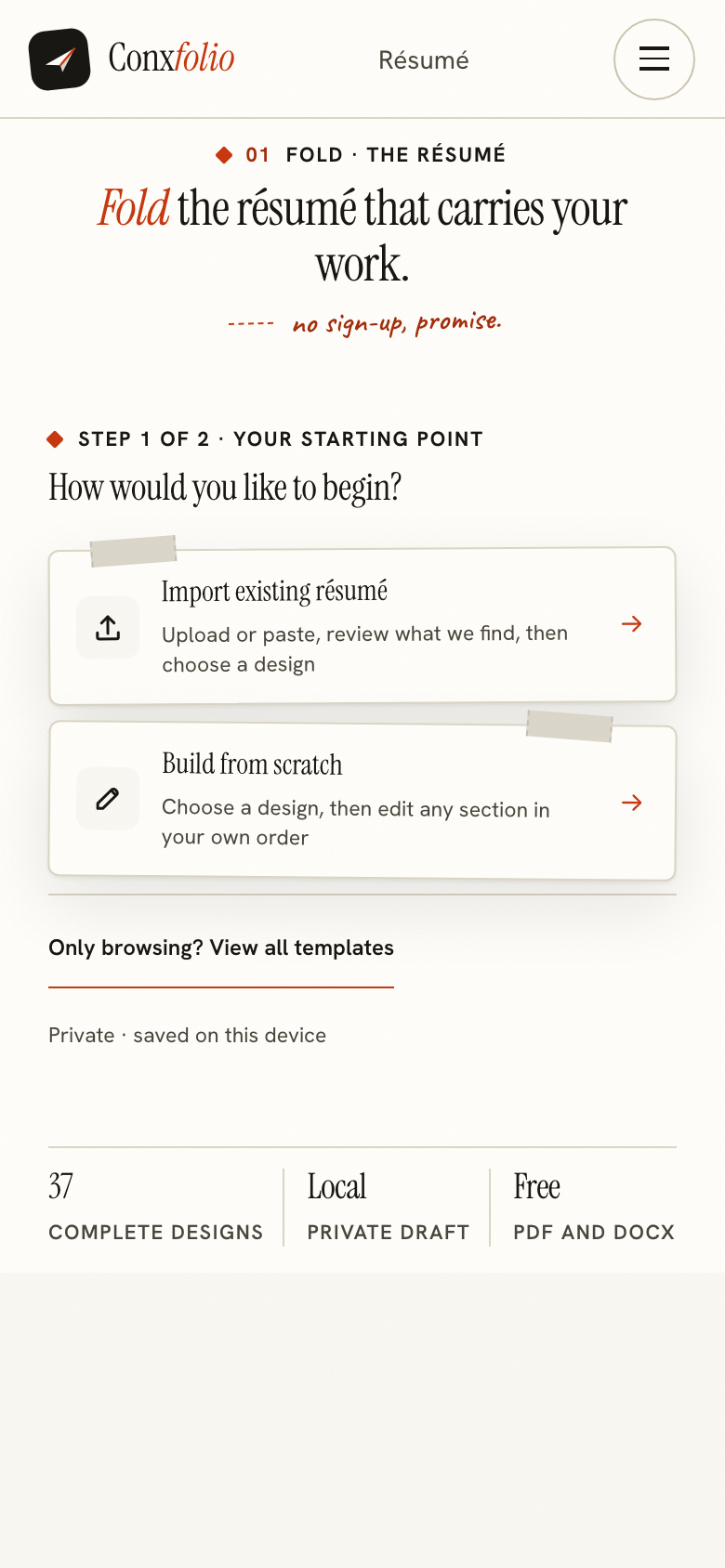
A phone is where most applications actually start. Somebody sends a posting, you read it on the train, and the résumé you need is a file in an email from two years ago. The résumé builder was built to survive that, so this page is about doing the whole job on a phone rather than promising to.
Everything below was done at 390 pixels wide, the width an iPhone browser reports for its layout. The pictures are the real screens.
Step one: open it in the browser
There is no app. The address opens in Safari or in any other browser on the phone, and the first screen offers two ways in: start from scratch, or use an existing résumé. No step requires an email address, a card or a social login, and the same screen says where the work is kept: drafts saved on this device.
Step two: give it what you already have
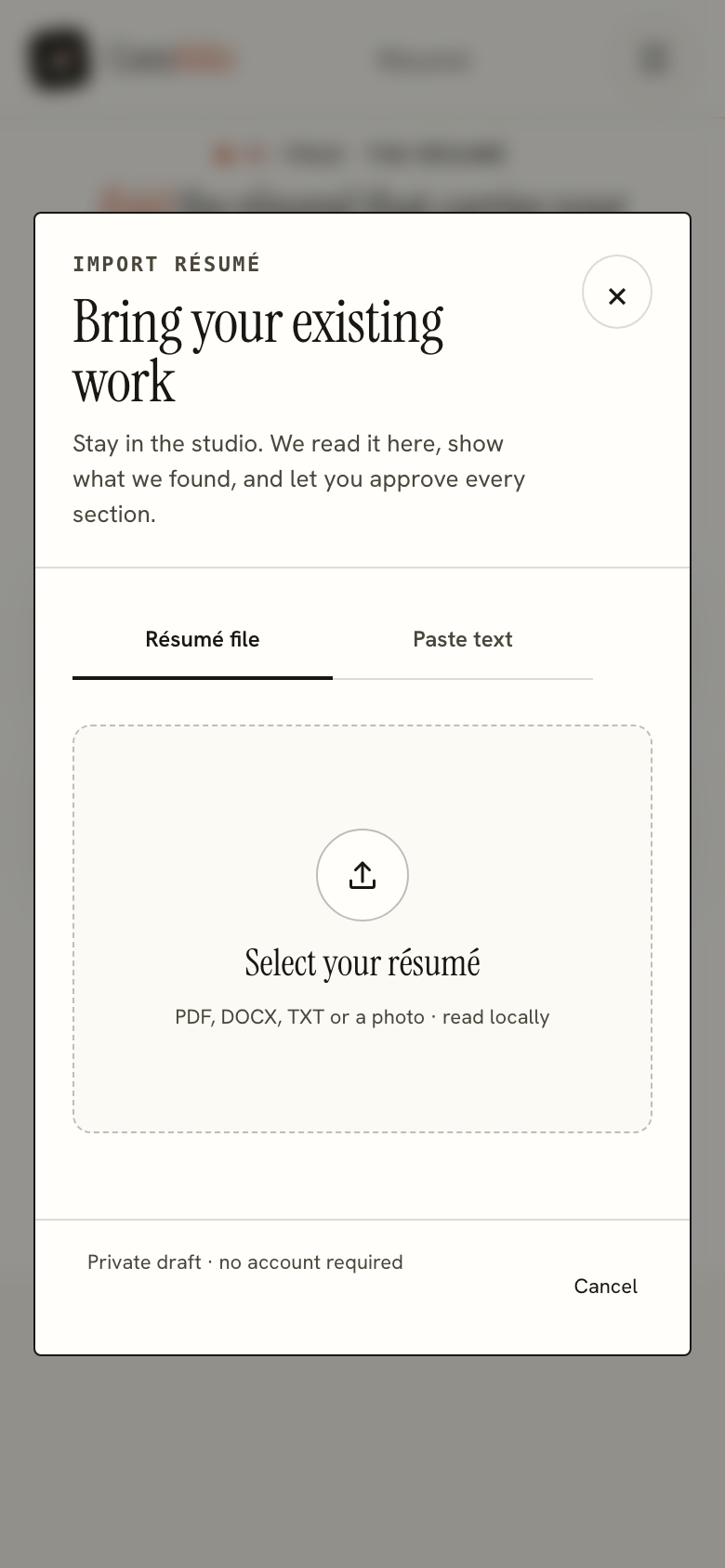
Two routes work well on a phone and one of them is better than people expect. The file route reaches Files and Photos, and the accepted list runs to PDF, DOCX, plain text, Markdown, RTF and images, HEIC included, which is the format an iPhone camera writes. A photograph of a printed page is read through text recognition in the browser itself, the same path a scanned résumé takes.
The paste route is often faster. If the résumé is in Notes, in an email or in a message to yourself, select it, copy it, and use Paste text. No file handling, no waiting for a download to finish before you can pick it.
Step three: read the review before you accept it
The review is the part that earns the phone journey. Every field the reading produced is listed beside the text it came from, with a count at the top of the roles, projects, degrees, languages and skills it found. The picture was taken on an earlier version of the review, which printed Read by 5 specialists · 1 page in that place. Fields that could not be found are reported as not found rather than filled with a guess, which is the behaviour described in the article on how the reader works without a model.
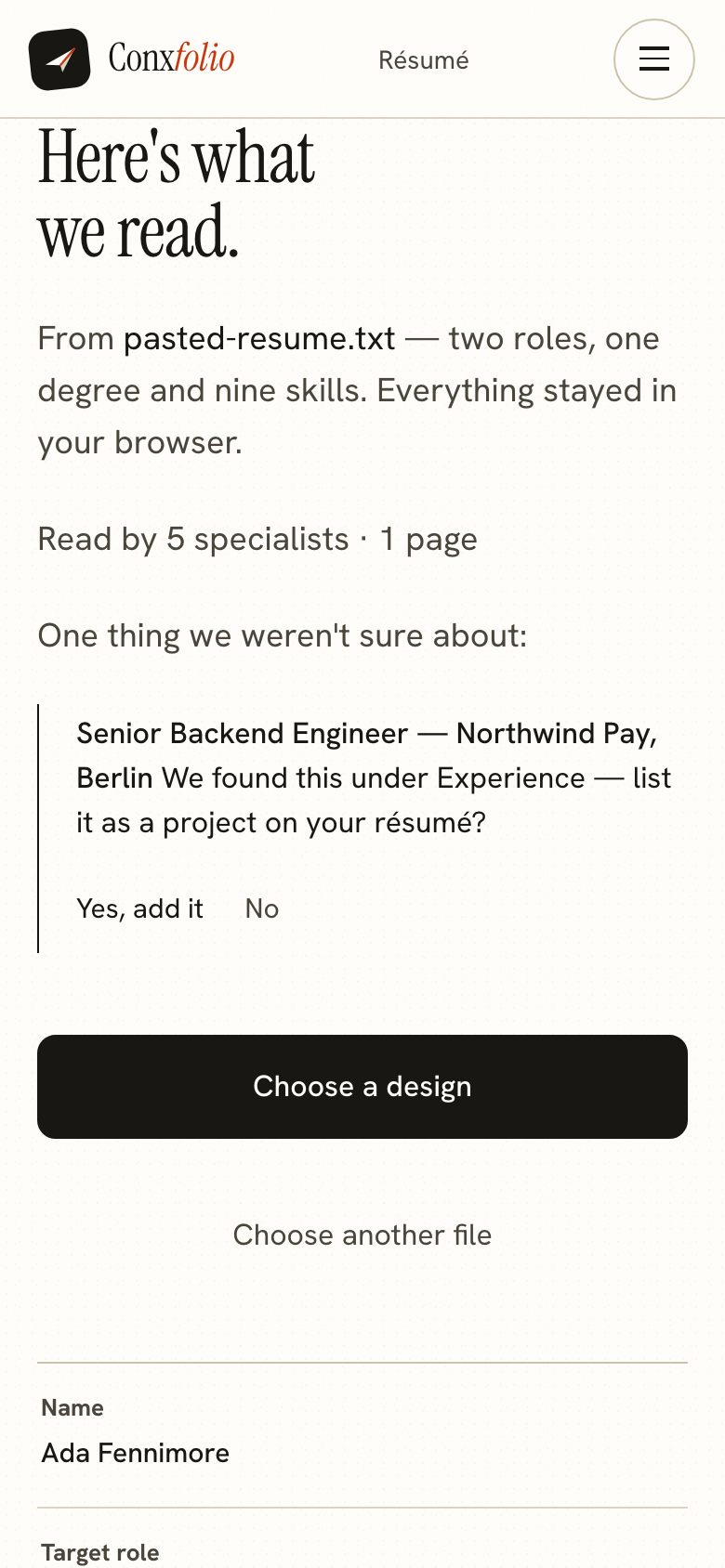
Correcting on a phone is typing into a form, which is tolerable for four or five fields and tiring for forty. The order that works is to fix names, dates and employers now, and leave the wording of achievement lines for later, because those are the ones you will rewrite anyway after reading the guide to experience bullets.
Step four: the design, and what it does not change
Choosing a layout switches the rendering, and the words stay where they are. There are 37 of them in the gallery, 24 marked ATS-safe, and swapping between two of them costs one tap. On a phone the preview is stacked under the editor rather than beside it, which is the only layout difference worth naming.
Step five: export
Both exports sit behind one menu labelled Download: PDF, described in the product as ready to share, and DOCX, described as keep editing elsewhere. Both are free, neither is watermarked, and neither is held back for a paid tier. The DOCX is assembled in the browser itself. The PDF is rendered on our server from the same design, which is why it comes back as a proper A4 page rather than a screenshot of a phone.
On iOS the file lands in Downloads and can be attached to an email or opened in another app from there. If the posting wants a particular file name, rename it at that point, following the naming guide.
What a phone cannot do better
Reading a full page of dense text at 390 pixels is harder than reading it on a laptop, and heavy rewriting is slower with a touch keyboard. The honest advice is to do the import, the correction and the export on the phone when that is what you have, and to do a long rewrite on a larger screen when you next sit at one. The work is in the browser you used, so the two are not automatically the same place. Moving between them means exporting a file and importing it again, which is covered in moving a résumé between devices.
After the résumé
The same phone runs the rest of it. The ATS checker reads the document and prints its own arithmetic, in one column at this width. The cover letter builder takes a posting pasted from the job advert. The portfolio builder renders a page and shows it at desktop and phone width before anything is public.
A phone habit worth keeping
Keep the résumé text somewhere you can paste from. A note on the phone holding the plain text of your current résumé is the single most useful thing to have when a posting appears at an awkward moment: it survives file pickers, it survives a flat battery on the laptop, and it pastes into the import in two taps. Update it whenever you finish a piece of work, one line at a time, in the shape the bullets guide describes.
The second habit is to run the check on the exported file rather than on the draft. The report prints what it read in words, lines and recognised headings, and those counts are the ones an employer's extractor will get. A file that reads short on a phone will read short everywhere.
Open it on the phone you are holding
Import a file or paste text, correct what was read, and export a PDF. Free, no account, 37 designs.
Open the résumé builderCheck a résumé insteadQuestions
- Do I need to install anything
- No. It is a web page. Safari, Chrome or any other browser on the phone opens it, and there is nothing in an app store to download.
- Can I upload a file from my phone
- Yes. The file picker reaches Files and Photos, and the accepted list is PDF, DOCX, TXT, Markdown, RTF and image formats including HEIC, which is what an iPhone camera writes. A photograph of a printed résumé goes through text recognition in the browser.
- Where is the work saved
- In that browser on that phone, under one storage key. Nothing is uploaded to an account, because there is no account. Moving to a laptop means exporting the file and importing it there.
- Does the phone layout hide anything
- No. The same sections, the same designs and the same export menu are present. The screenshots on this page are the real rendering at 390 pixels, and the page measured zero horizontal overflow and zero console errors at that width.
- Will the PDF look right when I send it
- The PDF is rendered on our server from the same design you see, at A4, so the file does not depend on the phone that asked for it. The measured export from this journey was a single A4 page.
Conxfolio is a free set of four career tools: a résumé builder with 37 rendered layouts, an ATS résumé checker that prints its own arithmetic, a cover letter builder that traces every proof paragraph back to the line it came from, and a portfolio builder with 22 authored designs. There is no account to create, nothing is held back for a paid plan, and no language model is used anywhere in the product, so the readers, the score and the letter are deterministic code you can check.