How to print a résumé so it comes out right
Print the exported PDF rather than the web page. The builder carries an A4 and US Letter switch, and both exports were measured at the page sizes those standards specify.
— print the file, not the tab.
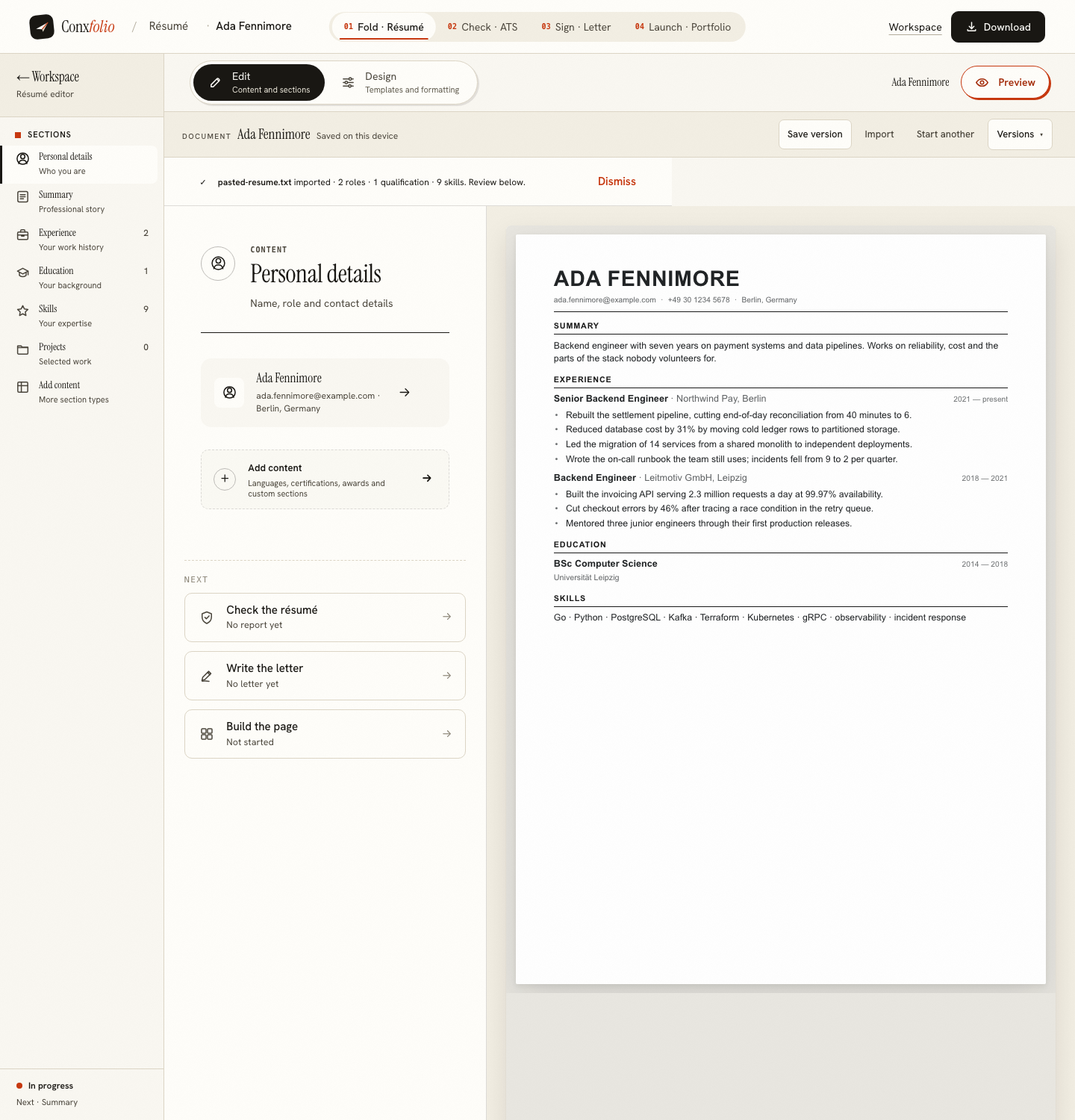
Printing is a smaller part of applying than it used to be, and it has not disappeared. Interviews, career fairs, agencies that still want paper, and the useful habit of reading your own document away from a screen, where the mistakes are easier to see.
Most printing problems with a résumé come from printing the wrong thing. Here is the right thing.
Choose the page standard first
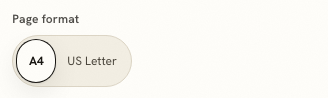
The résumé builder carries a two-button control labelled Page format, offering A4 and US Letter. It lives on the design side of the editor, under Page and sections, beside the section ordering.
The choice matters more than it looks, because the two standards differ in both dimensions: A4 is narrower and taller, Letter is wider and shorter. A page that fits on one can spill onto a second on the other, which is a bad surprise at a printer.
Export, and what the file actually is
Take the PDF from the Download menu. It is rendered on our server by a real browser engine from the same design you are looking at, which is why it comes out as a proper page with real type rather than a picture of a screen.
Both settings were measured on the exports taken for this page. The A4 export came out at 594.96 by 841.92 points on one page. The US Letter export came out at 612 by 792 points on one page. Those are the sizes the two standards specify, and the measurement is what pdfinfo reported on the files.
Print the file, not the tab
This is the single change that fixes most bad prints. A browser printing a web page applies its own margins, sometimes adds a header and a footer with the address and the date, and scales the content to fit whatever paper the printer says it has. None of that belongs to the design.
Open the exported PDF in a PDF viewer and print from there. The document already knows its page size, so there is nothing left for the browser to decide.
Turn off fit to page
The second most common cause of a print that looks subtly wrong is a printer dialog set to fit to page, shrink to fit or scale to fit. Those shrink the whole document by a few per cent to guarantee nothing is clipped, and what you get is slightly smaller type and larger margins than the design intended.
Set the scale to actual size or 100 per cent. If the printer then warns about margins, that is usually a printer that cannot print to the very edge, which is fine for a résumé because the design does not run to it.
Read the printed page as a reader would
Paper is a better proofreading surface than a screen, and it shows two things a screen hides. Whether the page is balanced, which is a question about white space rather than word count, covered in white space and the second page. And whether a section has been orphaned at the top of page two, which is the most common layout problem in a two-page résumé.
If it has, the fix is usually reordering or trimming rather than shrinking the type. The page-length guide covers the decision, and the section order control sits on the same design panel as the page format switch.
What the printed page cannot tell you
Whether the document reads well as text. A résumé that prints beautifully can extract badly, because the things that make a page handsome, like columns and text boxes, are the things that scramble extraction. Those are different questions about the same document.
Run the exported PDF through the ATS checker before you send it anywhere, and read the counts it reports in words, lines and recognised headings. If they match the page in your hand, the document is doing both jobs. If they do not, the format guide names the habits to change.
Two copies, and what to carry
Print two and take both. One for you to read from, marked up if you like, and one clean copy in case somebody asks for it, which happens more often at interviews than people expect. Plain paper is right; heavier stock reads as trying too hard and does not photocopy well.
Print the letter on the same standard if you are taking one. A4 résumé with a Letter-sized covering page looks like two documents from two places, which is a small thing that a reader notices without knowing why.
Printing somebody else's file
If you are helping somebody and the file is theirs, print the PDF they sent rather than anything you have re-exported, so what you are marking up is what employers will see. Running it through the checker at the same time gives you the extracted counts to read beside the paper, and checking a résumé you did not write covers doing that without keeping a copy of their document.
Get the page you designed
A4 or US Letter, exported as a rendered PDF from the same design you are looking at. Free, unwatermarked.
Open the résumé builderCheck it reads as well as it printsQuestions
- Where is the A4 and US Letter switch
- In the design side of the editor, under Page and sections, as a two-button control labelled Page format.
- What sizes do the exports actually come out at
- Measured with pdfinfo: the A4 export was 594.96 by 841.92 points on one page, and the US Letter export was 612 by 792 points on one page.
- Should I print the web page instead
- No. Print the exported PDF. A browser printing a page applies its own margins, headers and scaling, and none of that is part of the design.
- Why does my print come out slightly small
- Almost always a printer dialog set to fit to page or shrink to fit. Set it to actual size or 100 per cent, and the margins come out as designed.
- Which standard should I choose
- A4 for Europe and most of the world, US Letter for the United States and Canada. If you are applying across both, exporting one of each costs nothing.
- Does the PDF carry a watermark
- No. The exported file was checked with a text extractor and contained no brand, watermark or trial string anywhere.
Conxfolio is a free set of four career tools: a résumé builder with 37 rendered layouts, an ATS résumé checker that prints its own arithmetic, a cover letter builder that traces every proof paragraph back to the line it came from, and a portfolio builder with 22 authored designs. There is no account to create, nothing is held back for a paid plan, and no language model is used anywhere in the product, so the readers, the score and the letter are deterministic code you can check.